
DJI Agras T70P: Remote Controller, DJI Agras, Firmware y Enhanced Transmission
DJI Agras T70P: Remote Controller y DJI Agras — LEDs, Linking, Firmware y Enhanced Transmission
El remote controller del DJI AGRAS T70P es al mismo tiempo control de vuelo, diagnostic interface, firmware gateway, task console y optional 4G bridge. El DJI AGRAS T70P User Manual v1.0 (2025.11) dedica una parte importante a hardware, status LEDs, linking, DJI Agras Home/Operation View, firmware updates y Enhanced Transmission.
Resumen: cargue el controller con DJI 65W Portable Charger o locally certified USB-C charger de hasta 65 W / 20 V. LED green = connected, red = disconnected, blinking blue = linking, solid yellow = firmware update failed, solid blue = firmware update successful. Un new controller debe linked desde DJI Agras y luego manteniendo el Intelligent Flight Battery power button durante 5 seconds; DJI pide confirmar transmission distance de 300 m before use. Firmware se actualiza por DJI Agras o DJI Assistant 2. Enhanced Transmission combina OcuSync y 4G cuando está disponible, pero 4G es backup: return home promptly if image transmission becomes weak or disconnected.

1. Controller as operating console
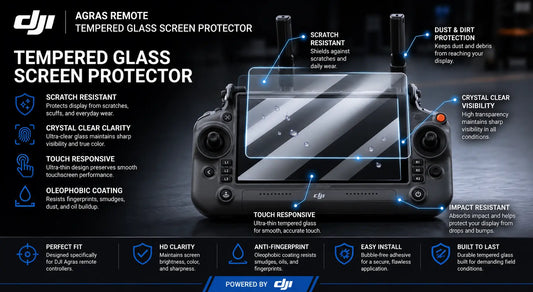
The controller is not only a stick interface. It presents telemetry, task state, radar, HMS, firmware, linking and connectivity tools.
2. Charging specification
DJI specifies its 65W Portable Charger or a locally certified USB-C charger with maximum rated power/voltage of 65 W / 20 V.
3. Touchscreen
The touchscreen is the primary interface for DJI Agras Home Screen and Operation View.
4. Control sticks
They provide manual flight input and should be centered when expected; a blinking-cyan status LED can indicate sticks not centered.
5. RTH button
Return-to-Home control is dedicated hardware; use it within the model-specific RTH procedures rather than as a general emergency button.
6. Flight Pause button
Provides a fast pause/control function in supported operation contexts.
7. Spray/Spread button
In Manual operation mode, this button starts or stops spraying.
8. Left dial
In Manual operation mode, the left dial changes spray rate.
9. FPV/Map button
Switches the Operation View display between FPV and map views.
10. Right dial
Adjusts the FPV camera when the aircraft is not performing a Mapping operation.
11. Flight-mode switch and customizable buttons
Know the assigned functions before operation; do not discover button configuration in flight.
12. Physical ports
The controller includes HDMI, USB-A, USB-C and microSD interfaces.
13. USB-A accessory path
The USB-A port can connect devices such as the RTK dongle, intelligent charger or multifunctional inverter generator.
14. WB37 Intelligent Battery compartment
The controller includes a battery compartment for the WB37 Intelligent Battery in addition to its internal battery system.
15. Internal and external antennas
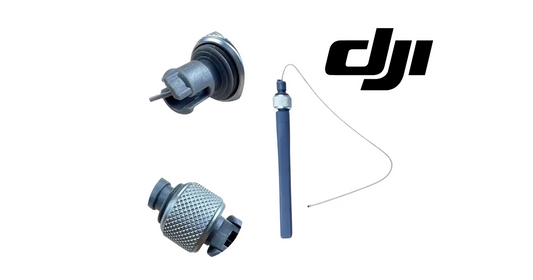
Antenna orientation and condition affect communication quality. Inspect them before troubleshooting deeper transmission hardware.

16. Status LED: solid red
Disconnected from aircraft.
17. Status LED: blinking red
Aircraft battery low.
18. Status LED: solid green
Connected.
19. Status LED: blinking blue
Linking.
20. Status LED: solid yellow
Firmware update failed.
21. Status LED: solid blue
Firmware update successful.
22. Status LED: blinking yellow
Controller battery low.
23. Status LED: blinking cyan
Control sticks not centered.
24. LED state is a diagnostic clue, not the whole diagnosis
Combine LED meaning with DJI Agras connection status, HMS messages and recent actions such as linking or firmware update.
25. Linking a new controller
The aircraft/controller are linked by default. A replacement or new controller requires linking.
26. Start linking in DJI Agras
Enter the linking command from Operation View.
27. Put the aircraft into linking state
Press and hold the Intelligent Flight Battery power button for five seconds.
28. Linking success state
The controller status LED turns solid green when linking succeeds.
29. Verify transmission distance before use
DJI says to confirm transmission distance can reach 300 m before normal use after linking.
30. Why 300 m verification matters
A controller can technically link yet still have an antenna, interference or transmission issue. The source adds a functional range check instead of treating “green LED” as the only acceptance criterion.
31. Linking checklist
- controller charged;
- aircraft battery installed;
- DJI Agras open;
- link command started;
- battery power button held 5 s;
- LED solid green;
- transmission-distance check completed;
- no unresolved HMS warning.
32. DJI Agras Home Screen
The Home Screen provides User Info, notifications, settings, document management, Log Upload, Device Management/HMS, connection status and the Start button.
33. Log Upload
Use logs as evidence when support needs to review a repeatable controller/aircraft issue.
34. Device Management and HMS
This is a primary diagnostic entry point before purchasing replacement hardware.
35. Start button
Moves the operator into Operation View after the system is ready.
36. Operation View
Contains mode switch, FPV, radar indicator, telemetry, operation status, settings, status bar and obstacle indicator.
37. Controller troubleshooting should use both screens
Home Screen is useful for device/log/HMS state; Operation View adds real-time flight and operation context.
38. Firmware update through DJI Agras
When new firmware is available, the Home Screen presents an update prompt.
39. Update All Selected
Select the devices and use the update workflow provided by DJI Agras.
40. Aircraft indicator during update
Front indicators blink yellow while firmware is updating.
41. Successful update indicator
Front indicators glow solid green after success.
42. Failed update indicator
Front indicators glow solid red after failure.
43. Restart after successful app update
DJI tells operators to manually restart the controller and aircraft.
44. Firmware update through DJI Assistant 2
DJI Assistant 2 can update the aircraft or controller one device at a time.
45. Connect one device to the computer
Select the correct firmware version and wait for update-success confirmation.
46. Remove propellers before firmware update
DJI specifically tells operators to remove propellers for this procedure.
47. Fully charge aircraft and controller
Do not begin a firmware process with marginal battery state.
48. Keep accessories connected
The source instructs operators to keep accessories connected during the firmware-update workflow.
49. Keep people and animals at safe distance
Firmware work still occurs around powered equipment and should be treated accordingly.

50. Enhanced Transmission combines OcuSync and 4G
When supported, the system uses OcuSync plus a cellular data path as an additional transmission layer.
51. Aircraft cellular requirement
The aircraft needs a DJI Cellular Dongle kit for the 4G path.
52. Controller cellular path
The controller can use a dongle or a Wi-Fi hotspot.
53. Availability varies by country or region
Do not assume Enhanced Transmission or cellular accessories are available/authorized identically in every market.
54. SIM recommendation
DJI recommends a normal 4G nano-SIM from an official carrier.
55. IoT SIMs
DJI warns against IoT SIMs for this use.
56. MVNO SIMs
The manual also discourages SIMs from virtual mobile network operators for this use case.
57. Phone hotspot recommendation
If using a phone hotspot, the manual recommends 2.4 GHz hotspot with 4G network mode.
58. Avoid answering calls on the hotspot phone
DJI discourages taking calls on the same phone during operation because it can disrupt the connectivity path.
59. 4G is a backup layer
Enhanced Transmission is not a reason to ignore weak OcuSync or continue farther into a degraded-link situation.
60. Enhanced Transmission can only be enabled while OcuSync is functioning
This preserves OcuSync as the primary operational layer.
61. OcuSync lost while relying on 4G
If OcuSync is lost and the aircraft is relying on 4G, restarting the controller or DJI Agras triggers Failsafe RTH.
62. Weak or disconnected image transmission
DJI says to return home promptly rather than continuing a task on 4G alone.
63. Connectivity troubleshooting order
- check controller status LED;
- check aircraft connection status in DJI Agras;
- check antenna condition/orientation;
- review HMS/messages;
- check OcuSync state;
- check cellular dongle/hotspot state if used;
- review SIM/network condition;
- preserve logs before hardware replacement.
64. Firmware troubleshooting order
- confirm sufficient battery;
- confirm supported update path;
- keep accessories connected;
- remove props;
- run update;
- read indicator/LED outcome;
- restart after success;
- if failed, capture version/error and retry only within supported guidance.
65. Controller service versus accessory needs
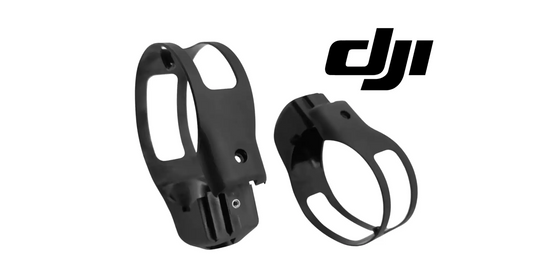
A protective cover or lanyard/bracket improves field handling but does not resolve linking, firmware, transmission or app-state issues.
66. T70P parts collection
Use model-specific hardware paths only after determining whether the issue is controller accessory, aircraft transmission, antenna, sensing or software/firmware.
67. Common error: LED green means everything is healthy
It only confirms connected state; DJI still asks for transmission-distance verification after new-controller linking.
68. Common error: using 4G to continue a poor-link mission
DJI says return promptly when image transmission is weak/disconnected.
69. Common error: restarting controller while flying on 4G backup
If OcuSync is lost, this can trigger Failsafe RTH.
70. Common error: firmware update with props installed
The source instructs propeller removal.
71. Common error: using hotspot phone for calls
DJI discourages this during operation.
72. Questions
What does green LED mean?
Connected.
What does blinking blue mean?
Linking.
How do I link a new controller?
Start linking in DJI Agras, then hold the Intelligent Flight Battery power button for 5 seconds.
What range should I verify after linking?
300 m according to the manual.
How can firmware be updated?
DJI Agras or DJI Assistant 2.
Is 4G a replacement for OcuSync?
No; treat it as a backup layer and return promptly when the primary link is weak/disconnected.
Source and revision
Primary source: DJI AGRAS T70P User Manual v1.0, 2025.11, sections 1.3, 7.2 and 7.3.