
DJI Agras T70P Remote Controller & DJI Agras Guide: LEDs, Linking, Firmware & Enhanced Transmission (Canada)
🇨🇦 CANADA — DJI Agras T70P Remote Controller & DJI Agras: LEDs, Linking, Firmware & Enhanced Transmission for Canadian Operators
🇺🇸 Reading from the United States? See the U.S. edition: DJI Agras T70P Remote Controller & DJI Agras Guide: LEDs, Linking, Firmware & Enhanced Transmission
This Canadian edition is written for Canadian DJI Agras operators across Canada, from the Prairie grain belt of Saskatchewan, Alberta and Manitoba to the row crops of Ontario and Quebec and the orchards and vineyards of British Columbia and Niagara. It covers the T70P controller and app: controls, LEDs, linking, Home and Operation View, firmware updates, Cellular Dongle and Enhanced Transmission. The procedure, specifications and warnings below are identical to the original edition linked above — the hardware does not change at the border. What changes for a Canadian operator is the regulatory and purchasing context: the DJI Agras T70P falls into Transport Canada’s medium RPAS class (25–150 kg) and flies within visual line of sight on an Advanced Operations pilot certificate under the November 2025 rules, with a Special Flight Operations Certificate for anything outside that envelope; spraying follows provincial applicator licensing and Health Canada PMRA aerial label directions, and pricing is shown in Canadian dollars. Ares Acres stocks the T70P remote controller, Cellular Dongle and antennas referenced in this guide as genuine DJI Agras OEM parts, ships them to Canada with free standard shipping, and shows CAD pricing at checkout.
The remote controller is the T70P's operating console, diagnostic interface, firmware gateway and optional 4G connectivity bridge. DJI devotes a substantial portion of the manual to controller controls, LEDs, linking, DJI Agras screens and Enhanced Transmission.
Quick Answer: Charge the controller with the DJI 65W Portable Charger or a locally certified USB-C charger rated up to 65 W / 20 V. The status LED is green when connected, red when disconnected, blue-blinking during linking, solid yellow after a failed firmware update and solid blue after a successful update. DJI Agras Home Screen provides logs, Device Management and HMS access; Operation View provides telemetry, radar, task status and settings. Firmware can be updated through DJI Agras or DJI Assistant 2. Enhanced Transmission combines OcuSync and 4G when supported.

Remote controller hardware

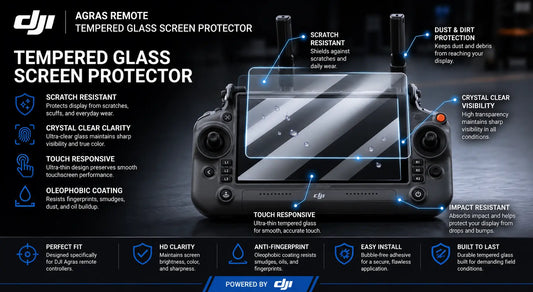
The controller includes the touchscreen, control sticks, RTH and Flight Pause buttons, spray/spread button, flight-mode switch, customizable buttons, HDMI, USB-A, USB-C, microSD slot, external/internal antennas and a battery compartment for the WB37 Intelligent Battery.
The USB-A port can connect devices such as the RTK dongle, intelligent charger or multifunctional inverter generator.
Spraying controls
In Manual operation mode, the left dial changes spray rate and the Spray/Spread button starts or stops spraying. The FPV/Map button changes the Operation View display, and the right dial adjusts the FPV camera when the aircraft is not performing a Mapping operation.
Status LED meanings
| LED | Meaning |
|---|---|
| Solid red | Disconnected from aircraft |
| Blinking red | Aircraft battery low |
| Solid green | Connected |
| Blinking blue | Linking |
| Solid yellow | Firmware update failed |
| Solid blue | Firmware update successful |
| Blinking yellow | Controller battery low |
| Blinking cyan | Control sticks not centred |
Linking a new controller
The controller is linked to the aircraft by default. A new controller requires linking. Open DJI Agras, enter the linking command from Operation View, then press and hold the Intelligent Flight Battery power button for five seconds. The controller status LED turns solid green when linking succeeds. DJI says to confirm the transmission distance can reach 300 m before use.
DJI Agras Home Screen and Operation View
The Home Screen provides User Info, notifications, settings, document management, Log Upload, Device Management/HMS, connection status and the Start button. Operation View contains the mode switch, FPV view, radar indicator, telemetry, operation status, settings, status bar and obstacle indicator.
Firmware update with DJI Agras
When new firmware is available, DJI Agras presents a prompt on the Home Screen. Select the devices to update and use Update All Selected. Aircraft front indicators blink yellow during the update, glow solid green after success and solid red after failure. Restart the controller and aircraft manually after a successful DJI Agras update.
Firmware update with DJI Assistant 2
DJI Assistant 2 updates the aircraft or controller one device at a time. Connect the relevant device to the computer, select the firmware version and wait for the update-successful message. DJI tells operators to remove the propellers before firmware updates, fully charge the aircraft and controller, keep accessories connected, and keep people and animals at a safe distance.
Enhanced Transmission

Enhanced Transmission integrates OcuSync with 4G. The aircraft needs a DJI Cellular Dongle kit and the controller can use a dongle or Wi-Fi hotspot. Availability depends on country or region.
DJI recommends a normal 4G nano-SIM from an official carrier. It warns against IoT SIMs and SIMs from virtual mobile network operators for this use. If using a phone hotspot, the manual recommends a 2.4 GHz hotspot with 4G network mode and discourages answering calls on the same phone during operation.
4G is a backup layer, not a reason to continue with poor link quality
Enhanced Transmission can only be enabled while OcuSync is functioning. If OcuSync is lost and the aircraft is relying on 4G, restarting the controller or DJI Agras triggers Failsafe RTH. DJI also says to return home promptly when image transmission is weak or disconnected rather than continuing a task on 4G alone.
Controller accessories and parts
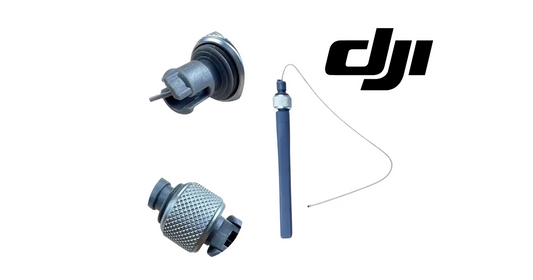
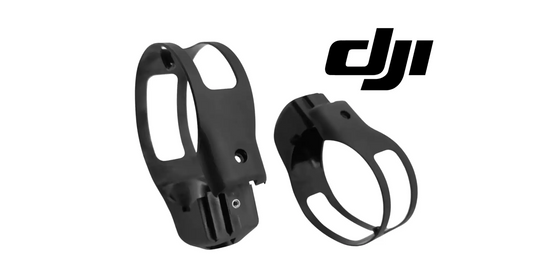
Verified catalog paths include the T70P-Compatible Remote Controller Protective Cover and T100/T70P RC Plus Lanyard & Bracket Kit. Additional model-specific hardware is organized under the T70P parts collection.
Shop Related Collections
Related T70P Tutorials
- T70P First-Time Setup & Activation
- T70P Mapping, Spraying & Operation Resumption
- Complete T70P User Manual Guide
🇺🇸 Reading from the United States? See the U.S. edition: DJI Agras T70P Remote Controller & DJI Agras Guide: LEDs, Linking, Firmware & Enhanced Transmission
Canadian Operator FAQ: T70P Remote Controller & DJI Agras Guide
Does Ares Acres ship the T70P remote controller, Cellular Dongle and antennas to Canada?
Yes. Ares Acres ships genuine DJI Agras OEM parts, including the T70P remote controller, Cellular Dongle and antennas referenced in this guide, to Canada with free standard shipping, and Canadian customers see CAD pricing at checkout.
Do I need an SFOC to fly the DJI Agras T70P in Canada?
Not for every operation. Under Transport Canada’s November 2025 rules, the DJI Agras T70P falls into the medium RPAS class (25–150 kg) and can be flown within visual line of sight on an Advanced Operations pilot certificate; a Special Flight Operations Certificate is still required for operations outside that envelope, such as beyond visual line of sight or payloads Transport Canada treats as dangerous goods. Confirm current requirements with Transport Canada and your provincial regulator before operating.
Is this controller and firmware procedure different for Canadian operators?
No. The controller and firmware procedure described here is identical in every country; only the regulatory framework, the purchasing path and the units used in this guide differ. Confirm current requirements with Transport Canada and your provincial regulator before operating.
Source and revision note
Primary source: DJI AGRAS T70P User Manual v1.0, 2025.11, sections 1.3, 7.2 and 7.3.