
DJI Agras Remote Control Activation Tutorial: How to Use the DJI T100 - T50 Remote
Share
🇺🇸 U.S.A. FIRST — DJI Agras Remote Controller Setup, Parts & Operator Support
The DJI Agras remote controller is much more than a pair of joysticks. For a commercial agricultural-drone operation, it functions as the mission-data hub for aircraft connection, operator accounts, teams, fields, flight records, task templates, spreading-material data, mapping outputs, prescription maps, device status, firmware, support logs, and access to the operation view.
Ares Acres supports U.S. DJI Agras operators with agricultural robotics, aircraft, OEM replacement parts, accessories, and technical educational resources. If you are building or maintaining a DJI Agras fleet, start with the DJI Agras T100, DJI Agras T50, DJI T100 Parts, DJI T50 Parts, DJI Parts, DJI Accessories, or the Ares Acres Product Catalog. For help identifying a component or planning a repair, contact Ares Acres.
This tutorial uses the word activation in the broad operator sense: getting the Agras remote controller ready for use and understanding the account, cloud, task, storage, support, and device-management systems that surround it. The DJI interface can change with software and firmware revisions, so labels or menu positions on your controller may differ slightly from the video.
Quick Answer: How Do You Use the DJI Agras T100 / T50 Remote Controller?
After powering on the DJI Agras remote controller, confirm that you are logged into the correct account and correct Agras Team, verify network connectivity when cloud features are needed, review aircraft/device connection status, and enter Operation View when you are ready to fly. Use Document Management to organize fields, unfinished tasks, task templates, materials, reconstruction outputs, and prescription maps. Use Flight Record synchronization for record continuity, Log Upload when DJI or a dealer needs diagnostic data, and Device Management to review connected-device firmware and status.
The single most important organizational rule in this tutorial is that fields are bound to teams. If fields appear to be missing after you change accounts or teams, first verify the active team before assuming the field data was deleted.
What This DJI Agras Remote Controller Tutorial Covers
- Remote-controller home screen and Operation View
- User account information, permissions, task area, flight hours, and total flights
- My Agras Team and team-bound field data
- Flight Record Auto-Sync and manual record upload
- Message Center, general settings, language, and units
- Privacy and optional product-improvement data sharing
- Storage Management and Network Diagnosis
- Beginner Guide
- Document Management and microSD workflows
- Planned fields and partially completed tasks
- Spraying/spreading task templates
- Spreading material templates and calibration curves
- Mapping reconstruction outputs and prescription maps
- Diagnostic Log Upload and QR-code support workflow
- Device Management, firmware, D-RTK, charging devices, DJI Relay, and generator information
1. Understanding the DJI Agras Remote Controller Home Screen
When the controller is powered on and the DJI Agriculture application loads, the home screen becomes the operator's control center. In the video, the main functional area is located toward the upper-left portion of the display. Along the lower portion of the interface are shortcuts and status areas that include Log Upload, Device Management, aircraft connection status, and the control used to enter Operation View.
| Home-Screen Area | Primary Purpose | Why It Matters |
|---|---|---|
| User / function area | Account, team, messages, settings, records, and related controls | Determines which operator, permissions, team data, and cloud resources you are working with |
| Log Upload | Upload flight records/logs for technical analysis | Important when a malfunction must be reviewed by support |
| Device Management | Review connected devices, versions, activation/status information | Central place for fleet hardware and firmware awareness |
| Aircraft connection status | Shows whether the aircraft/controller system is connected | Confirm before attempting flight operations |
| Enter Operation View | Opens the operational flight interface | Gateway to mission planning and execution |
If you are learning mission planning after controller setup, use the Ares Acres DJI Agras T100 Route Mode Field Planning & Task Execution Tutorial.
2. User Info: Confirm the Correct DJI Agriculture Account
The User Info screen provides the identity and operational history associated with the logged-in account. Depending on software version and account permissions, the screen can display personal/account information, permissions, task area, flight hours, and total flights.
For a one-person operation this may seem administrative. For a commercial fleet, however, operator identity matters because mission records, permissions, team membership, fields, cloud content, and troubleshooting history can all depend on which account is active.
Before an operating day, verify:
- The intended DJI Agriculture account is logged in.
- The user has the permissions required for the planned work.
- The correct Agras Team is active.
- Required fields and task templates are visible.
- Cloud-dependent content has synchronized when appropriate.
3. My Agras Team: Why Fields Can Appear to Disappear
Fields are bound to teams. The My Agras Team area lets an operator preview the team associated with the current account and, when permitted, switch between teams. An owner account can create or manage teams according to the permissions available in the DJI Agriculture system.
This creates an important troubleshooting distinction: switching teams can change the field library you see without the underlying field necessarily having been deleted.
If a planned field is missing:
- Check the logged-in account.
- Open My Agras Team.
- Verify that the intended team is selected.
- Return to Document Management or the field/task list.
- Check local and cloud sources as applicable.
- Only after those checks should you investigate deletion, synchronization, or import problems.
This is particularly important when several pilots share aircraft, remotes, or field libraries. Treat the active team almost like selecting the correct project workspace before beginning a mission.
4. Flight Record Auto-Sync and Manual Flight Record Upload
The tutorial recommends Flight Record Auto-Sync so the remote controller can synchronize task details to the DJI Agriculture server for later management and review. The Flight Record screen can also be used to upload records manually.
For commercial operators, synchronized records can improve continuity between operating days and help preserve mission history. However, cloud synchronization depends on network access, account state, and the operator's data-sharing choices. If your company has a formal privacy, information-security, or data-retention policy, configure synchronization according to that policy rather than enabling settings without review.
A practical record-management routine
- At the start of the day, confirm the correct account and team.
- Confirm the remote has usable network connectivity if cloud synchronization is required.
- Review synchronization status before leaving reliable internet coverage when practical.
- After critical operations, confirm important tasks and flight records are present.
- Before clearing storage or changing controllers, preserve records that your operation requires.
5. Logging Out and Logging Back In
The Exit control logs the current account out of the DJI Agriculture application. According to the tutorial, the operator can then log back in by scanning the available login QR code or entering account credentials.
Before logging out in a multi-team environment, note which account and team are active. This can save significant troubleshooting time if the next login presents a different field library or set of permissions.
Security note: do not send account passwords, authentication codes, or other login credentials when asking a dealer or third party for support. Diagnostic QR codes generated by the Log Upload process are different from login credentials; share only the information required for the support case.
6. Message Center
Message Center provides access to unread and historical messages. Operators should review relevant system notices instead of dismissing them automatically, particularly when a message relates to software behavior, firmware, device compatibility, safety, activation, or service requirements.
7. General Settings: Units, Language, and Audio
General Settings allows operators to configure measurement units and other available application parameters. The tutorial also demonstrates the language control. When the remote-controller language is changed, compatible multilingual audio resources may be downloaded by the system.
For fleets with several pilots, standardizing units across every controller is useful. A mismatch between metric and U.S. customary units can create avoidable confusion when teams communicate application rates, heights, distances, speeds, and field dimensions.
Recommended fleet standardization
- Choose one unit system for the organization.
- Use consistent language settings where training materials depend on exact menu labels.
- Document any controller-specific exceptions.
- After a major application update, confirm that key operational settings were not unintentionally changed.
8. Privacy Settings and the DJI Product Improvement Project
The source tutorial recommends enabling the available privacy/data options for convenience and also recommends participating as a contributor to DJI's product-improvement program. Those choices should be treated as optional data-sharing decisions, not prerequisites for normal agricultural-drone operation.
For an individual operator, the tradeoff may be convenience versus the amount of operational or diagnostic data shared with online services. For a university, government entity, contractor, enterprise farm, or other organization with formal data rules, the decision may require internal review.
Ares Acres operator principle
Enable the cloud and telemetry features your operation needs, but understand what each setting does before opting in. Follow your organization's privacy, cybersecurity, contractual, and record-retention requirements.
9. Storage Management: Protect Important Mission Data
Storage Management lets the operator clear different categories of application data. The tutorial notes that when controller memory becomes limited, some general data may be cleared while important data should be preserved.
Do not use storage cleanup as the first response to every software problem. Before deleting data, distinguish between disposable cached/general content and operational records your team may need later.
Before clearing controller data:
- Confirm which category is being removed.
- Synchronize or export required records where supported.
- Preserve active and unfinished tasks.
- Preserve important field data and prescription maps.
- Preserve troubleshooting evidence if a malfunction is under review.
- Confirm the correct team and account first so you do not mistake a workspace issue for a storage problem.
10. Network Diagnosis: Check the Controller's Internet Path
Network Diagnosis helps determine whether the remote controller is communicating through the expected network path. In the tutorial, successful connectivity is represented by green connections between the displayed nodes.
If cloud fields, flight-record synchronization, login, firmware retrieval, or log upload fails, Network Diagnosis is one of the first places to check.
When network diagnosis fails:
- Confirm the controller is actually connected to Wi-Fi, cellular service, or the intended internet source.
- Check whether the network itself has internet access.
- Retry Network Diagnosis.
- If only one cloud function fails while the rest of the internet path works, investigate account, server, file, or application-specific issues rather than assuming the entire controller is offline.
11. Beginner Guide
The Beginner Guide appears when entering Operation View for the first time. The tutorial explains that an operator can press and hold interface icons to learn their functions. If you want the guide to appear again later, the Reset option can restore the onboarding walkthrough.
This feature is useful for onboarding new pilots, but it should complement—not replace—formal training on aircraft limitations, local procedures, pesticide-label compliance when applicable, and the operating rules relevant to the mission.
12. Document Management: The Remote Controller's Mission Library
Document Management is one of the most important areas of the Agras controller because it organizes the data objects that make repeatable agricultural operations possible.
| Document Type | What It Contains | Typical Use |
|---|---|---|
| Fields / planned tasks | Planned field boundaries and related field data | Repeat operations on known fields |
| Tasks In Progress | Partially completed operations | Resume work after refill, battery change, interruption, or later operating window |
| Task Templates | Preset spraying or spreading parameters | Standardize recurring mission settings |
| Materials | Spreading-material application/calibration information | Reuse known material behavior and calibration data |
| Reconstruction Output | Outputs generated from field or orchard/fruit-tree mapping | Field planning or 3D route editing |
| Prescription Maps | Variable-rate application task data | Execute location-specific application prescriptions |
If you are using D-RTK precision positioning, see the DJI Agras T100 D-RTK 3 and the Ares Acres DJI Agras T100 D-RTK 3 Setup Tutorial.
13. Local Storage vs DJI Agriculture Cloud vs microSD
The tutorial explains that mission documents can exist in different storage locations: locally on the controller, in the DJI Agriculture cloud/server environment, or on a microSD card. After inserting a compatible microSD card, the controller can access supported data stored on the card and can import items such as plots/fields and prescription maps.
That means “I don't see the file” is not a complete diagnosis. The first question should be: where is that file supposed to live?
Data-location troubleshooting order
- Verify account.
- Verify team.
- Check local controller storage.
- Check cloud availability/synchronization.
- Check the inserted microSD card if the data originated there.
- Confirm the file/data type is supported by the current application workflow.
14. Managing Planned Fields
The field/task library allows planned fields to be sorted by parameters such as time or distance and categorized by field type. Search can help locate a specific field in a larger database.
The tutorial shows that an individual field can be selected for management actions such as renaming, uploading to the cloud, or deletion. Multiple fields can also be selected for batch upload or deletion, and compatible fields can be downloaded from the cloud.
Before bulk deletion: verify both the selected records and the active team. Bulk management is efficient, but it also magnifies mistakes.
For a deeper guide to creating and executing saved routes, read DJI Agras T100 Tutorial: How Plan Fields and Execute Tasks.
15. Tasks In Progress: Resume Instead of Rebuilding the Mission
Tasks In Progress contains operations that were started but not fully completed. An operator can retrieve a partially completed task and resume it, or mark it finished when appropriate.
This is operationally important because agricultural work is frequently interrupted by battery swaps, refills, changing weather, daylight, field access, or other constraints. Preserving unfinished-task state can reduce duplicated work and help the operator continue from the appropriate portion of a mission.
For autonomous multi-field workflows, also see the DJI T100 Multiple Fields & Autonomous Flight Tutorial.
16. Task Templates: Standardize Spraying and Spreading Settings
Task Templates store preset spraying or spreading parameters. A saved template can be reviewed and then reused in a flight task rather than rebuilding every parameter from scratch. The tutorial also shows the ability to upload templates to the cloud.
For commercial teams, templates can improve consistency—but only if operators verify that the template actually matches the current aircraft configuration, material/product, crop, field conditions, label directions, and mission requirements. A template is a starting configuration, not permission to skip the preflight decision process.
For T100 spreading setup and programming, use the DJI T100 Spreading System Programming & Calibration Tutorial.
17. Material Templates and Spreading Calibration Curves
Material Templates store application information for different materials used in spreading operations. After calibration, the system can create a relationship between material flow rate and gate/opening size for the specific material/configuration.
This is a major reason not to treat all seed, fertilizer, feed, or granular products as interchangeable. Flow behavior can change with particle size, shape, coating, density, humidity, blend composition, and equipment configuration.
Best practice for material records
- Name the material clearly enough that another operator can identify it.
- Record the relevant calibration after the physical feeder/spreading configuration is confirmed.
- Treat a materially different seed lot or blend as a new calibration case when appropriate.
- Do not assume an old calibration remains correct after hardware changes.
For feeder selection, see the Ares Acres DJI Agras T100 Auger Size Guide and browse T100 replacement parts if the spreading hardware itself requires service.
18. Reconstruction Output
Reconstruction Output contains results generated after supported mapping workflows for fields or fruit-tree/orchard environments. These outputs can then support field planning or editing of 3D flight paths, depending on the available aircraft, sensors, application version, and mission type.
Reconstruction data is not simply another image file; it can become an input to later planning. Preserve the correct source data and confirm that the reconstruction corresponds to the actual field/site before relying on it for an operation.
19. Prescription Maps and Variable-Rate Application
Prescription Maps represent variable-rate application tasks created after processing appropriate remote-sensing data, such as multispectral imagery, through a compatible agronomic workflow. Instead of applying one uniform rate over the entire field, a prescription can assign different rates to different areas.
The controller's role is to store/import and use the compatible prescription task; the quality of the agronomic prescription still depends on the upstream imagery, processing, analysis, and application decision. Operators should validate that the correct field, prescription layer, units, and product/material are selected before execution.
20. Log Upload: How to Send DJI Agras Diagnostic Data for Analysis
When an Agras aircraft or connected system malfunctions and a dealer or DJI support team needs data, Log Upload can package the relevant diagnostic information for analysis.
Diagnostic log workflow shown in the tutorial
- Open Log Upload.
- Select the issue/category that best matches the malfunction.
- Locate the logs or flight records generated around the time the problem occurred.
- Select the relevant records.
- Upload them using a working internet connection.
- After the upload completes, the system generates a QR code.
- Take a clear photo of the generated QR code.
- Write a concise description of what happened, including the aircraft, approximate time, operating stage, warnings displayed, and what changed immediately before the fault.
- Send the support package to the appropriate DJI Agriculture dealer or DJI after-sales channel.
This workflow is valuable because a screenshot of an error message alone rarely captures the complete diagnostic context. A good support case combines the exact symptom with the system records from the event.
Ares Acres diagnostic intake checklist
- Aircraft model
- Remote/controller model if relevant
- Exact error message or code
- Whether the fault is repeatable
- Battery/charger/generator involved, if relevant
- Recent firmware or hardware changes
- Approximate event time
- Relevant QR/log upload reference
- Photos of visibly damaged components when applicable
If you need help identifying a DJI Agras replacement component after diagnosis, use the DJI Parts catalog or contact Ares Acres.
21. Device Management: Firmware and Connected Hardware
Device Management displays information about supported connected devices, including firmware versions and device/activation status. If a newer firmware version is available, the interface may offer an update.
Commercial-fleet rule: do not turn “new version available” into “update every device immediately without review.” Firmware can add features, fixes, compatibility changes, and safety improvements, but controlled operations benefit from knowing what is changing.
Before a non-emergency fleet-wide firmware rollout:
- Review current DJI release information when available.
- Confirm aircraft, controller, payload, battery/charging, RTK, and accessory compatibility.
- Preserve critical records and templates.
- Update during a maintenance window when practical.
- Test a representative system before updating an entire commercial fleet when the operating context allows.
- Do not delay a critical safety instruction or mandatory corrective action merely to preserve an older configuration.
22. D-RTK Mobile Station Status
Device Management can be used to activate or review the status of supported D-RTK equipment. For T100 operators who need precision positioning, Ares Acres carries the DJI Agras T100 D-RTK 3 High-Precision GNSS Mobile Station.
For a step-by-step setup workflow, use the DJI Agras T100 D-RTK 3 Tutorial. An older D-RTK 3 calibration tutorial is also available in the Ares Acres technical library.
23. Charging Devices and DJI Generator Information
The Device Management area can show supported charging-device information. The tutorial also demonstrates connecting a compatible DJI generator to the remote controller with a USB-C cable and then opening the charging-device area to view available information such as activation time and other device data shown by the current software.
For aircraft power-system context, read the DJI T100 Power Supply Tutorial.
24. DJI Relay Status and Signal-Hardware Ecosystem
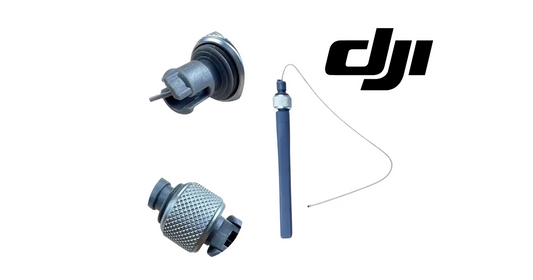
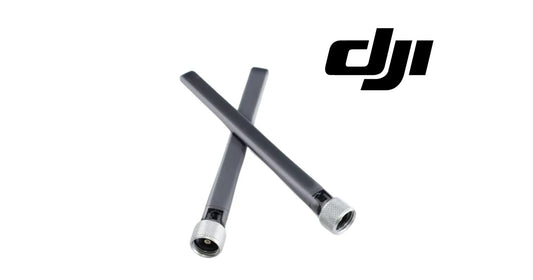
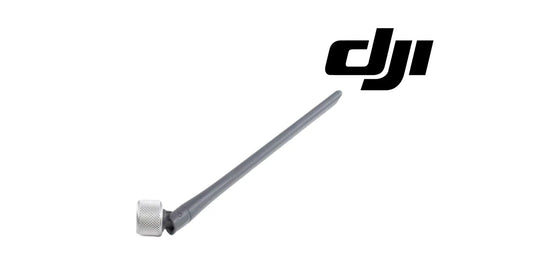
Supported DJI Relay equipment can also be managed or checked from the controller's device-management ecosystem. T100 operators can review the DJI Agras T100 OEM O4 Relay Signal Repeater System and DJI Agras T100 OEM O4 Relay Antenna Pair. T50 operators who need controller antenna hardware can review the DJI Agras T50 OEM Remote Controller External Antenna Pair.
Signal equipment is not a substitute for flight planning, visual awareness, or compliance with the operating rules applicable to your mission. Treat connectivity hardware as one layer of the overall operational system.
25. Ares Acres Remote Controller Setup SOP
For a repeatable commercial workflow, the following sequence is a useful controller-side checklist before field operations:
- Power on and inspect the controller. Confirm the display, controls, antennas, ports, and physical condition.
- Verify account. Make sure the intended DJI Agriculture user is logged in.
- Verify team. Confirm the correct Agras Team before looking for fields.
- Verify aircraft connection. Confirm the controller recognizes the intended aircraft/system.
- Check network when needed. Run Network Diagnosis if cloud-dependent functions are not working.
- Check records and documents. Confirm required fields, unfinished tasks, templates, material records, reconstruction outputs, or prescription maps are available.
- Check device status. Review D-RTK, relay, charging devices, and other connected hardware as applicable.
- Review firmware state. Resolve known compatibility or safety issues before deployment.
- Confirm mission-specific settings. Never assume a saved template is correct for today's aircraft, product, field, weather, crop, or payload.
- Enter Operation View. Continue with the appropriate mission-planning mode.
For field planning, continue to the Route Mode tutorial. For A-B workflows, use the DJI Agras T100 A-B Operation Mode Tutorial. For custom paths, see DJI T100 Customizable Flight: How to Set a Flight Path.
DJI Agras Remote Controller Troubleshooting Matrix
| Symptom | Check First | Next Step |
|---|---|---|
| Fields disappeared after login or team change | Correct account and Agras Team | Check local/cloud data only after team is confirmed |
| Flight records are not syncing | Network connection and sync setting | Use Network Diagnosis and try manual record upload |
| Cloud fields/templates are missing | Account, team, internet connection | Confirm cloud synchronization/download state |
| Controller storage is nearly full | Storage Management categories | Back up/sync required records before clearing expendable data |
| Network Diagnosis fails | Wi-Fi/cellular/internet source | Repair internet access before diagnosing cloud-specific functions |
| Log Upload fails | Internet connection and selected record | Retry with correct event records; preserve files until case is resolved |
| Unfinished task is not visible | Tasks In Progress + correct team | Check local/cloud source and whether task was marked finished |
| Connected device does not appear | Physical connection/power/link state | Check compatibility, cable/linking, firmware, and device-specific setup |
| D-RTK or relay status unavailable | Device power, linking, and current team/account context | Follow the device-specific DJI setup procedure |
| Saved task template gives unexpected result | Current aircraft/payload/material configuration | Revalidate mission parameters and recalibrate when applicable |
Frequently Asked Questions
Is the DJI Agras remote controller only used to fly the drone?
No. It also serves as a mission-management interface for accounts, teams, field data, tasks, templates, materials, cloud records, device status, diagnostics, and other operational functions.
Why are my DJI Agras fields missing?
First verify the active account and Agras Team. Because fields are bound to teams, switching teams can change the field library displayed on the controller.
Are DJI Agras fields permanently saved?
Saved fields can be retained for future use, but availability depends on where the field is stored, the account/team context, synchronization state, and whether the data was deleted. Preserve important operational data according to your fleet's record-management policy.
Should I enable Flight Record Auto-Sync?
It can make flight/task history easier to manage and review through DJI Agriculture cloud services. Operators should balance that convenience with their organization's network, privacy, cybersecurity, and data-retention requirements.
Do I have to enable every privacy setting?
No. Privacy and data-sharing controls should be understood and selected according to the operator's or organization's needs and policies.
Do I have to join DJI's Product Improvement Project?
No. Treat product-improvement participation as optional telemetry/data sharing rather than a requirement for normal flight operation.
What is Document Management on a DJI Agras controller?
It is the library for planned fields/tasks, unfinished tasks, task templates, material data, reconstruction outputs, prescription maps, and related mission documents.
Can a DJI Agras remote controller use a microSD card?
The tutorial shows microSD support for accessing compatible data and importing supported items such as plots/fields and prescription maps.
What are Tasks In Progress?
They are partially completed operations that can be retrieved and resumed later or marked finished when appropriate.
What is a DJI Agras task template?
A task template saves preset spraying or spreading parameters so compatible settings can be reused in later missions.
Should a saved task template be used without checking it?
No. Verify that it still matches the current aircraft, payload, product/material, crop, field, conditions, and applicable operating requirements.
What is a material template?
It stores application/calibration information for a spreading material. Calibration can establish a relationship between material flow rate and gate/opening size for the configured system.
What is Reconstruction Output?
It is mapping-derived output that can be used in supported workflows for field planning or 3D route editing.
What is a prescription map?
A prescription map is a variable-rate application dataset that tells the application system how target rates change spatially across a field.
How do I upload DJI Agras logs?
Open Log Upload, select the issue, choose the records from the time of the malfunction, upload them, and preserve the generated QR reference for the support case.
What should I send with a DJI Agras diagnostic QR code?
Include the aircraft model, exact symptom/error, approximate event time, repeatability, recent hardware or firmware changes, and a concise description of what the aircraft was doing when the issue occurred.
Can I see firmware versions from the Agras remote?
Device Management displays firmware information for supported connected devices and can present available update actions.
Should I update DJI Agras firmware immediately whenever an update appears?
Not automatically in every commercial situation. Review compatibility and release information and use a controlled maintenance process when practical, while following urgent safety or mandatory corrective instructions promptly.
Can the Agras controller manage D-RTK equipment?
Device Management supports status/activation workflows for compatible D-RTK equipment. See the dedicated Ares Acres D-RTK 3 tutorial for T100 setup.
Can the controller show DJI generator information?
The tutorial demonstrates connecting a compatible DJI generator via USB-C and reviewing available charging-device information through Device Management.
What is Network Diagnosis?
It is a controller-side diagnostic view that helps determine whether the expected network path is connected. The tutorial represents successful links with green connections between nodes.
How do I reopen the Beginner Guide?
Use the guide's Reset function so the onboarding prompts can be shown again when entering Operation View.
Can multiple DJI Agras fields be uploaded or deleted together?
The tutorial shows batch selection for upload or deletion. Verify the active team and selected fields carefully before a bulk deletion.
What remote-controller accessories does Ares Acres carry?
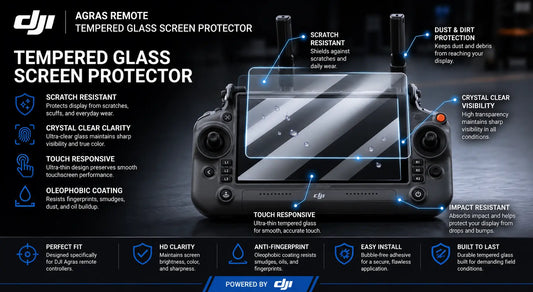
Current catalog examples include the DJI Agras T100 Remote Controller Tempered Glass Screen Protector and DJI Agras T50 OEM Remote Controller External Antenna Pair. Browse DJI Accessories for additional current listings.
What Is Ares Acres?
Ares Acres is a U.S.-based agricultural robotics company focused on DJI Agras aircraft, OEM replacement parts, accessories, technical education, and operator support. Our technical library is designed to help operators move from a vague warning or unfamiliar menu to a structured operating or diagnostic workflow.
For current aircraft packages, review the DJI Agras T100 Platinum Set, DJI Agras T100 Full Set, DJI Agras T50, and DJI Agras T50 Full Set with Generator.
Build a Better DJI Agras Operator Workflow
The remote controller should be treated as part of the aircraft's operating system—not simply as the device held by the pilot. The strongest workflow is:
correct account → correct Agras Team → synchronized mission data → verified device status → validated task settings → operation → preserved records → support logs when required.
Continue learning with the T100 Route Mode Tutorial, T100 A-B Operation Mode Tutorial, T100 Spreading System Tutorial, and T100 D-RTK 3 Tutorial.
For hardware, browse DJI T100 Parts, DJI T50 Parts, DJI Agras Parts, DJI Accessories, or the full Ares Acres catalog. If you need help identifying a replacement part or organizing a diagnostic case, contact Ares Acres.
Operational notice: DJI Agriculture application menus, terminology, cloud behavior, device compatibility, and firmware workflows can change by aircraft model, region, controller, and software version. Use the current DJI documentation and the instructions displayed by your equipment. Preserve required operational records before clearing data. Privacy, synchronization, telemetry, and product-improvement settings should be selected according to your own or your organization's requirements. Agricultural application missions must also follow the product label and all applicable federal, state, and local operating requirements.